
Purchase Orders
Purchase orders help you decide what to buy, record what was ordered, and book stock in safely when goods arrive.
Recommended flow
Select a supplier, review supplier items, check stock and recent sales, then enter quantities manually or use forecast suggestions.
Use the stock column, 7/14/30 day sales figures, suggested quantities, MOQ values and any bulk-sale warnings to sanity-check the order.
Drafts are safe to edit. Marking sent records that the order has been placed with the supplier but does not book stock in.
Enter the quantity actually received. TrueSKU records stock movements and keeps the purchase-order context for audit/history.
Create PO screen
The Create PO screen is designed for fast buyer workflow. You can scroll through a supplier catalogue, tab down the quantity boxes, and enter order quantities while keeping buying data visible.
| Column / area | What it means |
|---|---|
| Stock | Current linked SKU stock at the time the page was loaded. Unlinked supplier items do not show SKU stock. |
| Sales 7 / 14 / 30 | Recent sales totals from cached SKU stats. These help the buyer judge normal demand. |
| Bulk-sale warning | Shown when a large portion of recent sales appears to come from a single sale/order. Treat the forecast with caution. |
| Suggested quantity | Forecast-based suggested order quantity, using SKU stats and current stock. It is a starting point, not an instruction. |
| Qty | The quantity you actually want to order. You can tab down the Qty inputs for quick entry. |
| Unit cost | The supplier item cost used for this PO line. Double-click to adjust the line price where enabled. |
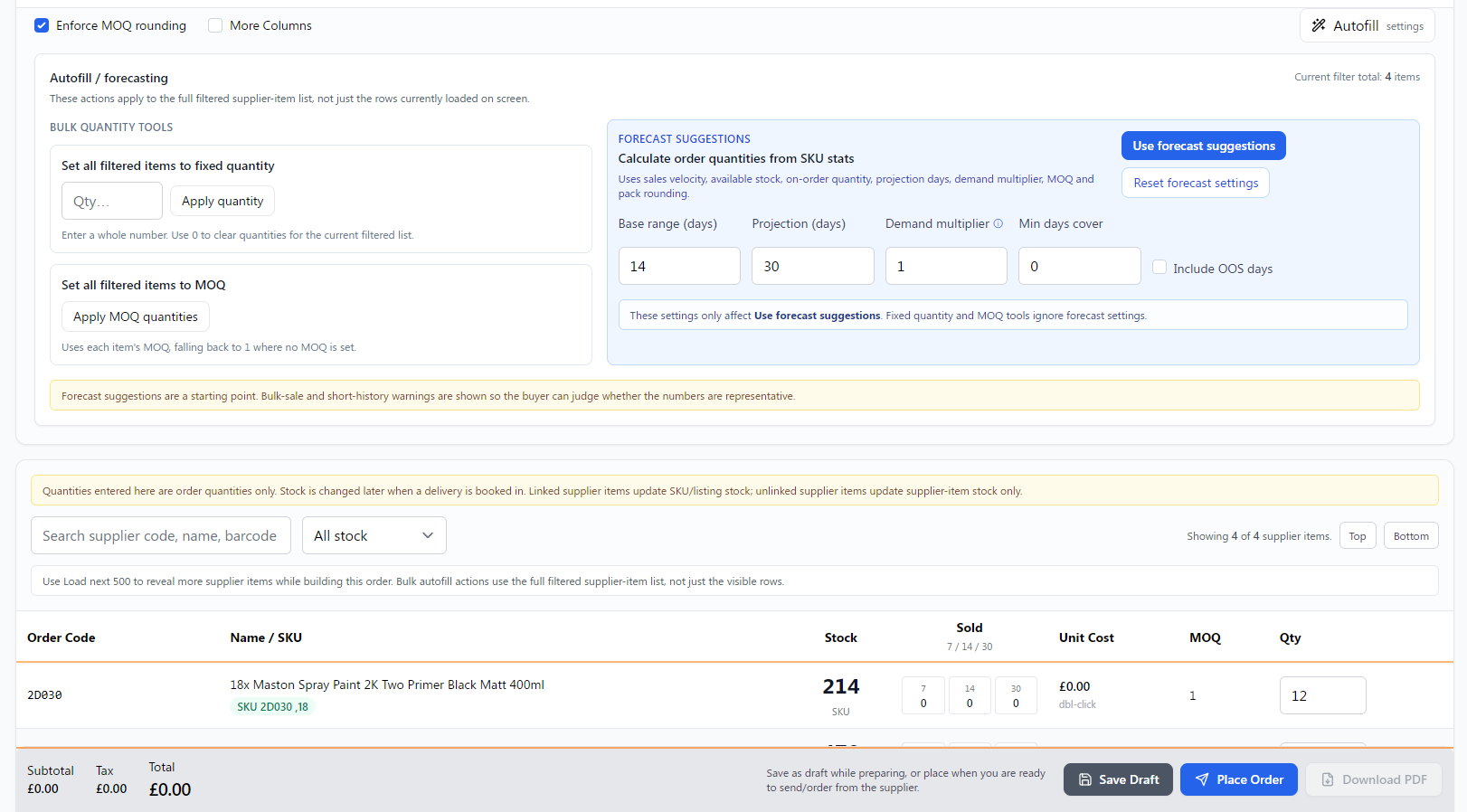
Autofill and forecast suggestions
The Autofill panel contains separate tools for bulk quantity entry and forecast-based suggestions.
- Apply quantity sets all currently filtered supplier items to the same quantity.
- Apply MOQ quantities sets filtered items to their minimum order quantity, falling back to 1 where no MOQ is set.
- Use forecast suggestions uses SKU stats, sales velocity, stock, on-order quantity, projection days, demand multiplier, MOQ and pack rounding.
Linked and unlinked supplier items
A supplier item can be linked to a SKU, or it can exist as an unlinked purchase option.
- Linked supplier item: receiving stock updates the linked SKU and can feed listing/channel stock control.
- Unlinked supplier item: receiving stock updates supplier-item stock only. It will not update SKU/listing stock until linked.
Partial deliveries
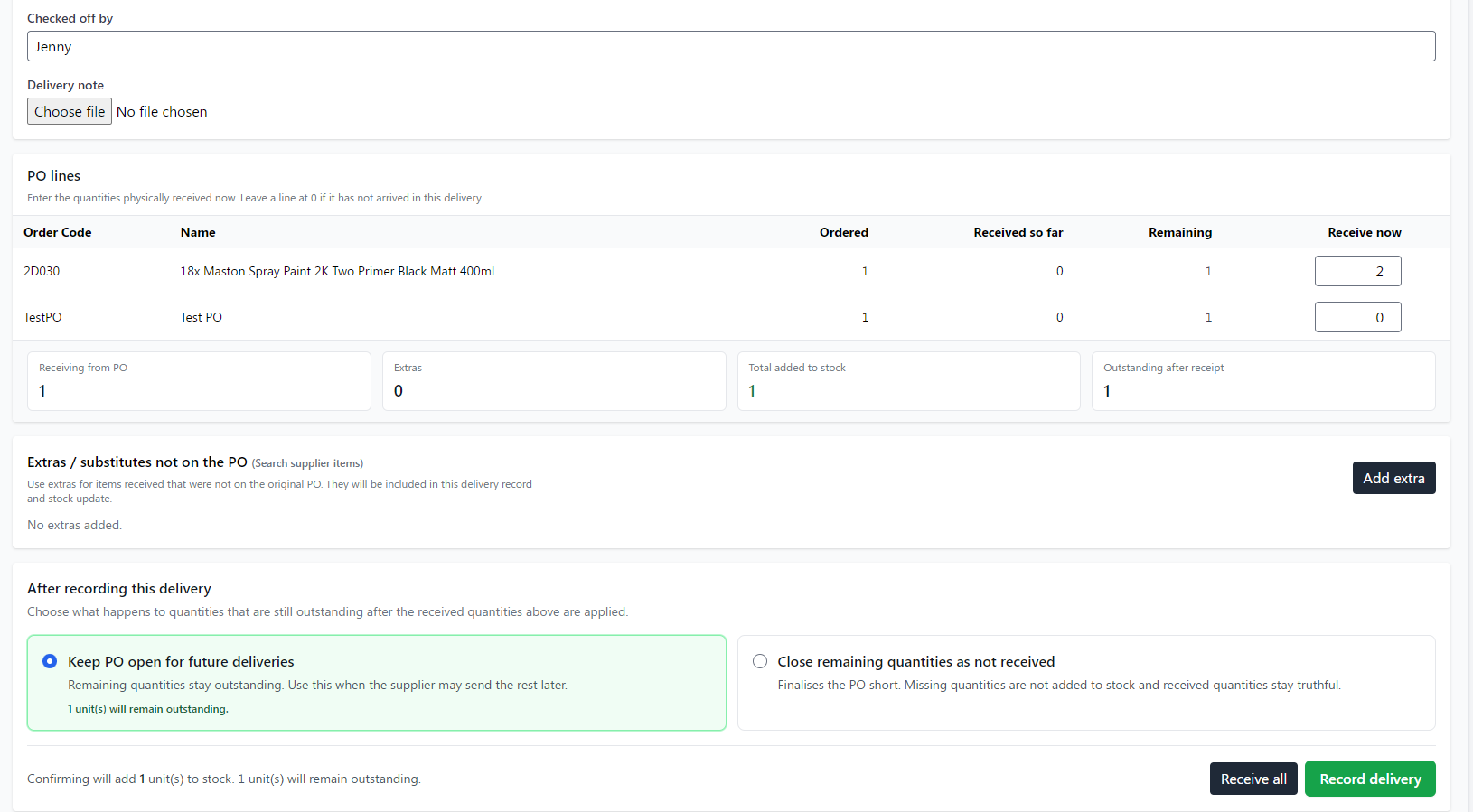
If only part of an order arrives, receive the quantity actually delivered. TrueSKU keeps the remaining quantity outstanding so you can receive the rest later.
Receiving deliveries
Use the Receive Delivery screen when goods arrive. Enter the delivered quantities, confirm who checked the delivery, and record any extra items if needed.
Receiving from a phone
Deliveries can also be received by scanning barcodes on a phone instead of typing quantities on desktop - useful when goods are being unpacked in the warehouse. See Warehouse App for setup, including giving warehouse staff a scan-only login that doesn't use a paid seat.
API note
The API currently documents listing and receiving purchase orders. Creating purchase orders through the API should remain service-backed before being exposed as a full public workflow.